
1. Go to the DNS Management or DNS Settings menu
2. To add SPF, proceed as follows
- Host or Domain Name field: Enter a domain name followed by a dot (.) such as abc.com. or if the system fills in automatically do not enter any value.
- Type field, select TXT.
- The Value field if using only the host's mail server. Enter v=spf1 a mx ip4:123.456.789 ~all
- If G Suite is included, use v=spf1 a mx ip4:123.456.789 include:_spf.google.com ~all
Example on DirectAdmin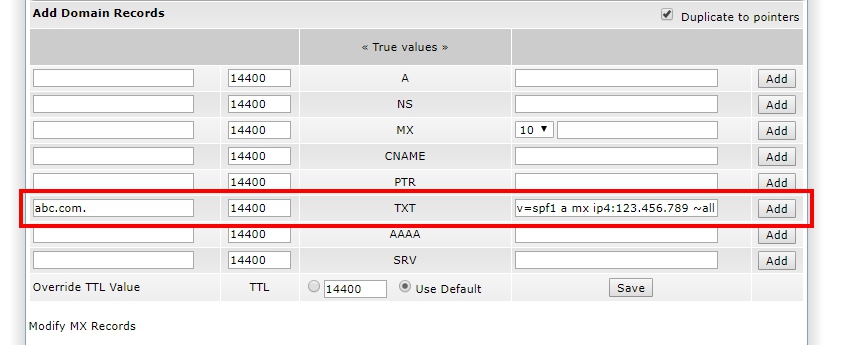
Example on Plesk
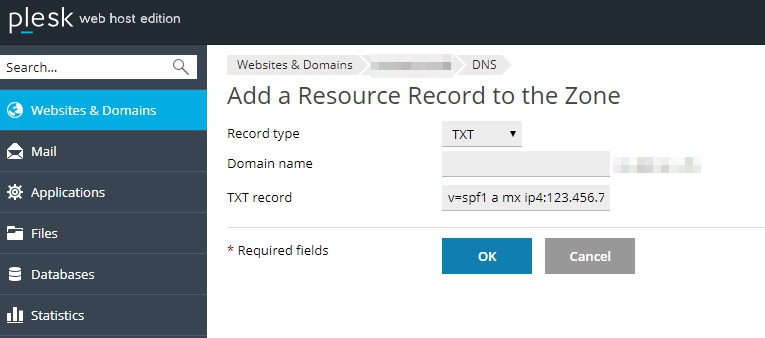
Press Add or OK or Update
3. To add DMARC, proceed as follows
- Host or Domain Name field: Enter a domain name followed by a dot (.) such as abc.com. or if the system fills in automatically do not enter any value.
- Type field, select TXT.
- In the Value field, enter v=DMARC1; p=none; pct=100; rua=mailto:email@abc.com; sp=none; aspf=r;
Example on DirectAdmin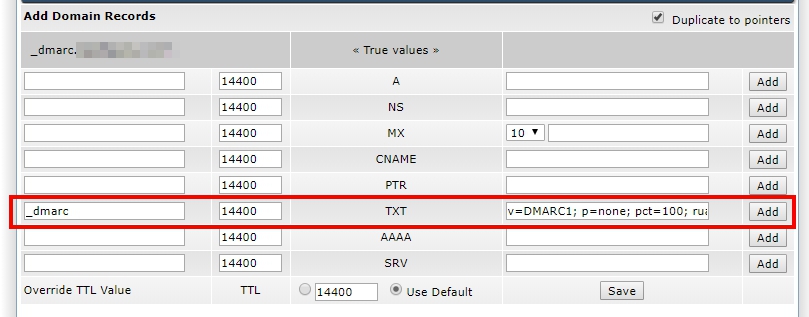
Example on Plesk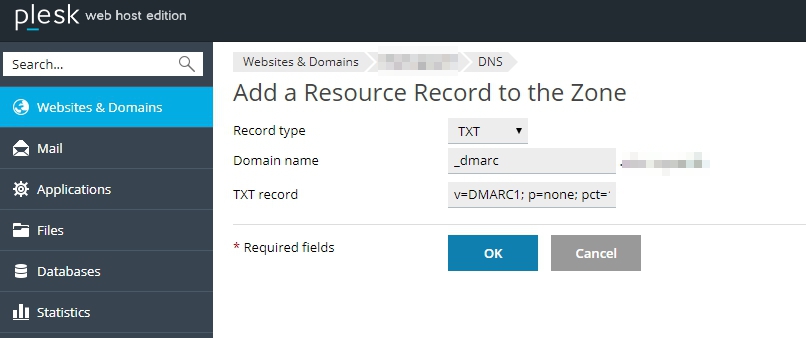
Press Add or OK or Update
Wait about 30 minutes for the system to update and try sending again.
Note
(1) Change 123.456.789 to the IP address of the server.
(2) change abc.com to a domain name.
(3) Change email@abc.com to be the primary email. to receive reports of receiving and receiving emails.
